
 EN
EN



Products
Rakusun [Smart Dimensioning Tool]
Just as the designer intended —
quick, automated dimensioning.
Automatically generate dimensions by specifying whether and where they should be displayed.
Rakusun supports dimension creation exactly as intended by the designer.
Start your 30-day free trial today.
First, download and install the program. The free version will launch, allowing you to use the outer dimension display function alone at first.
You are also welcome to try our 30-day free trial offer to test the product’s features. To unlock all features, request a free trial license key after installation.
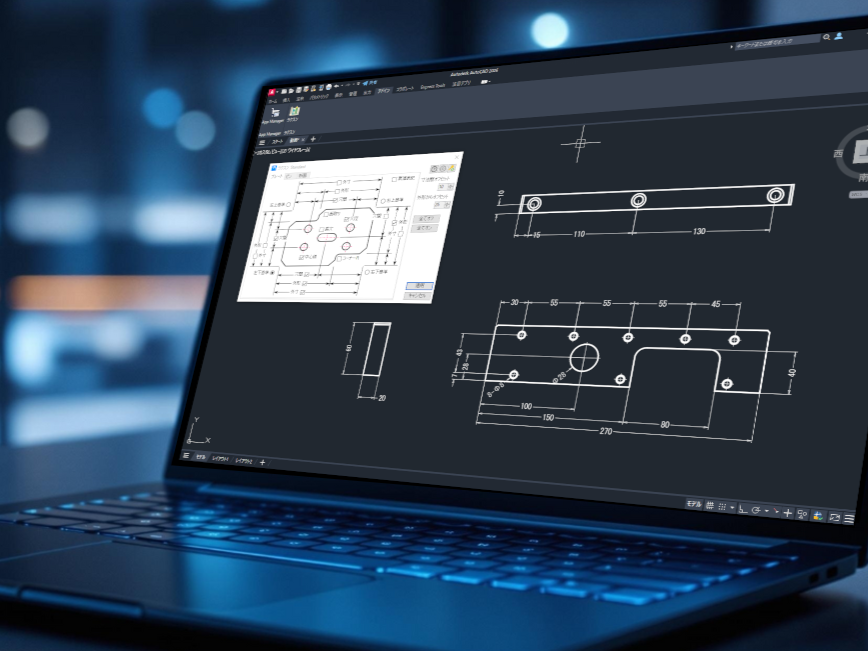
Target Products
“Rakusun” is an add-in application for AutoCAD and IJCAD.
- AutoCAD
Versions: 2025, 2026 - AutoCAD Architecture
Versions: 2025, 2026 - AutoCAD Mechanical
Versions: 2025, 2026 - AutoCAD MEP
Versions: 2025, 2026
- IJCAD STD
Versions: 2026
Licensing & Pricing
- Subscription (1 year)
- Node-locked license
- 100,000 JPY/Year
How to Apply for a License
You can apply for both the 30-day free trial license and the full version license by clicking the application button  .
.
- 30-day free trial license
- Available only to first-time applicants.
- A repeat or duplicate application will be invalid.
- Standard product version license
- This is a paid license.
We will respond to your application within three business days.
Steps
1. Click the license application button
*Not valid for purchases made through the Autodesk App Store.
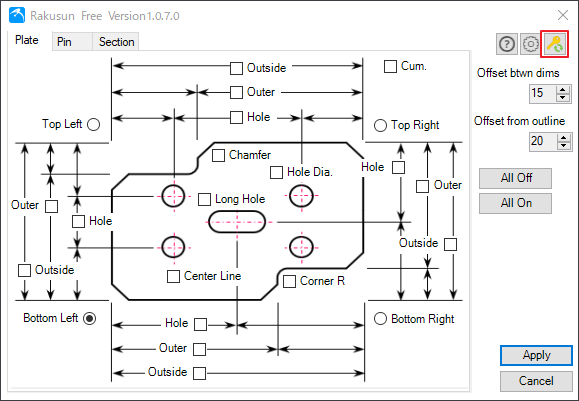
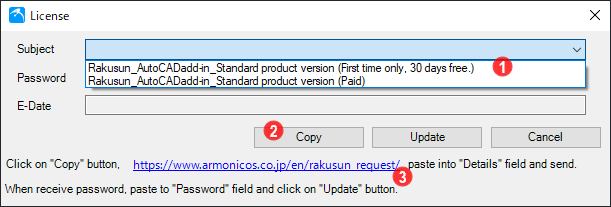
2. When the dialog box appears, apply for a password.
① Select the desired license from the “Subject” drop-down menu.
② Click the “Copy” button.
③ Open the specified site, paste it into the “Details” field, and submit.
We will respond to your application within three business days after confirming the details.
- 30-day free trial license
- You will receive a password to activate your license.
- Standard product version license
- You will receive payment instructions, and a password will be issued after your payment is confirmed.
How to activate your license
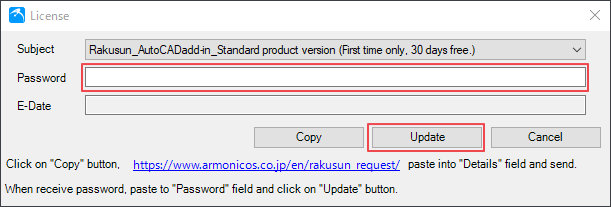
Once you receive the password, paste it into the “Password” field and click the “Update” button.
Once verified, the date will appear in the “E-Date” field and the license will be activated.
Frequently Asked Questions
As of June 22, 2026
About installation
① Can I change the installation folder?
No. Do not change the installation folder.
About dimension creation specifications
② Which dimension entities can be exported?
Only the following entities among the selected entities are targeted.
・Straight lines parallel to the X-axis (solid lines)
・Straight lines parallel to the Y-axis (solid lines)
・Full circles (solid lines)
③ Where are outer and external dimensions referenced from?
Horizontal dimensions are referenced from lines parallel to the Y-axis, and vertical dimensions are referenced from lines parallel to the X-axis. Diagonal lines are not supported.
④ How are identical holes recognized in hole spacing and hole dimensions?
They are recognized by the radius of the selected circle. Even if depths are different, holes with the same radius are considered identical and may require correction.
⑤ Outer dimensions and outer shapes cannot be created up/down or left/right.
Outer dimensions and outer shapes can only be placed up/down for horizontal dimensions and left/right for vertical dimensions.
⑥ Which layer are dimensions and center lines created on?
All are created on the active layer. Only center lines use the “CENTER” linetype.
⑦ Which dimension style is used?
The active dimension style is used.
⑧ Can I preset the export check box?
Yes. Configure user settings via the gear icon in the upper-right corner of the dialog box. The specified initial check box state will be applied after restarting the command.
⑨ The chamfer dimensions do not appear.
You must set the maximum limit to a value larger than the actual chamfer size, in the settings.
Steps to Resolve:
1) Click the gear icon in the top-right corner of the Rakusun dialog box to open “User Settings.”
2) Navigate to the [Plate] tab. On the lower right side, locate the “Maximum Chamfer Length” field and enter a value larger than your actual chamfer.
Example: If you have a C10 chamfer, enter a value of 11 or higher. We recommend entering a significantly larger value to account for all other chamfers in your design.
⑩ Why can’t I use some functions?
Certain features are currently disabled but will be available in future updates. Please contact us for details.
Other
⑪ Can I use Rakusun with CAD other than AutoCAD?
Currently, Rakusun is only compatible with AutoCAD and IJCAD.We are considering extending compatibility to other CAD systems in the future. If you would like to use Rakusun with a different CAD software, please feel free to contact us.
⑫ Can Rakusun be customized for our company’s workflow?
Yes. Contact us with your requirements. We will propose tailored solutions and provide support.
Start your 30-day free trial!
Questions or requests regarding features
*Autodesk and AutoCAD are registered trademarks or trademarks of Autodesk, Inc., and/or its subsidiaries and/or affiliates.
*IJCAD is a registered trademark or trademark of SystemMetrix Co., Ltd. in Japan and other countries.